

ForesightXL User Guide
Your Forecasting Assistant
A complete step-by-step walkthrough for generating AI-powered, context-driven forecasts directly inside Microsoft Excel.
Overview
ForesightXL is an Excel add-in that turns your historical workbook data into clear, explainable forecasts. It combines the numbers already in your sheet with natural-language business context so every forecast has both evidence and rationale.
Forecasts are generated from historical data plus the context you provide, then written back into your workbook for review and reuse.
It keeps the forecast inside Excel, separates evidence from judgment, and explains every number through structured outputs.
Getting Started
Everything you need to launch ForesightXL for the first time - from finding the add-in in Excel's ribbon to signing in with your Microsoft account.
- Locating ForesightXL in the Excel ribbon
- Opening the Forecast Assistant panel
- Signing in with Microsoft
1.1 OPEN EXCEL & FIND FORESIGHTXL IN THE RIBBON
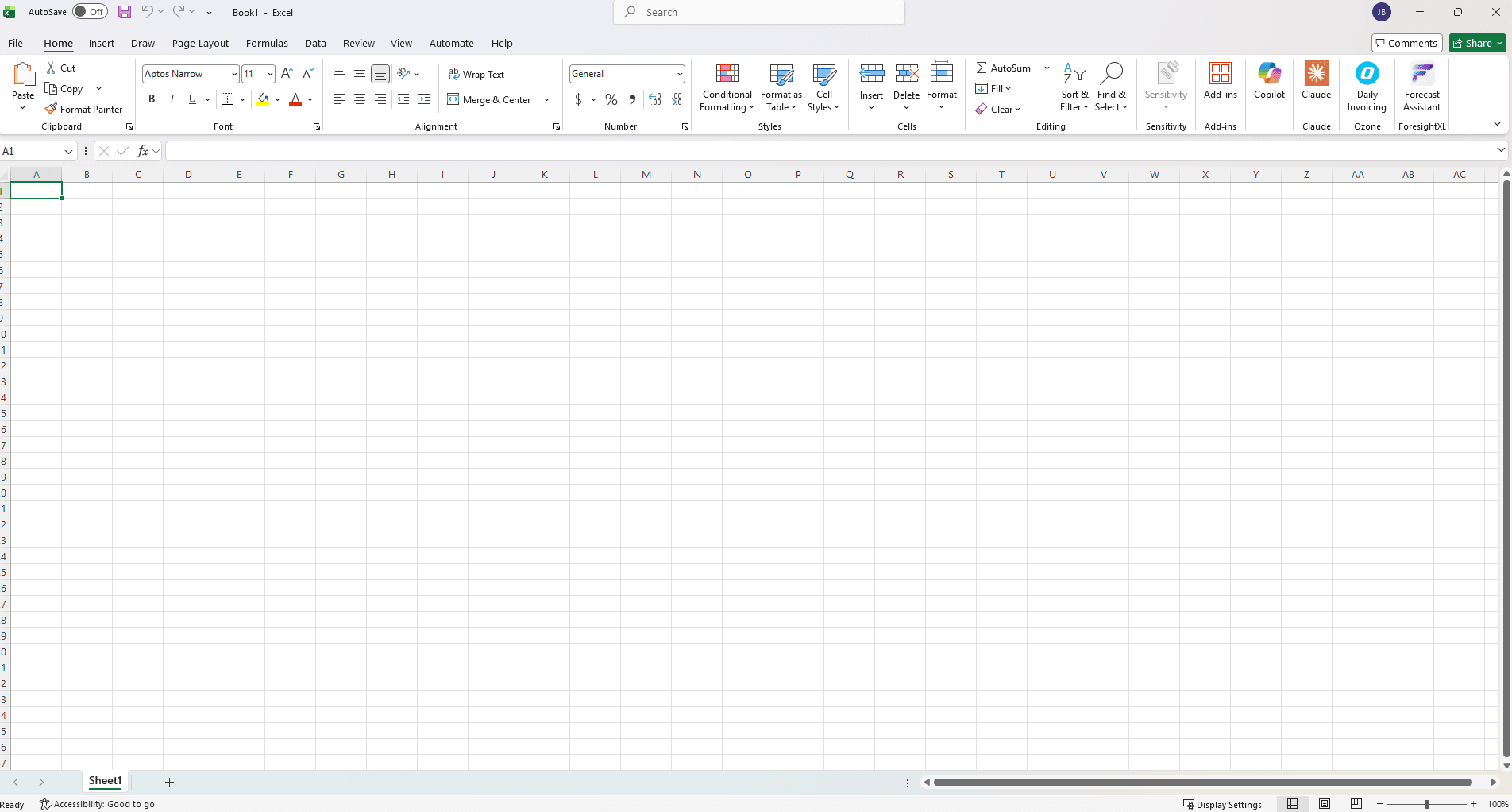
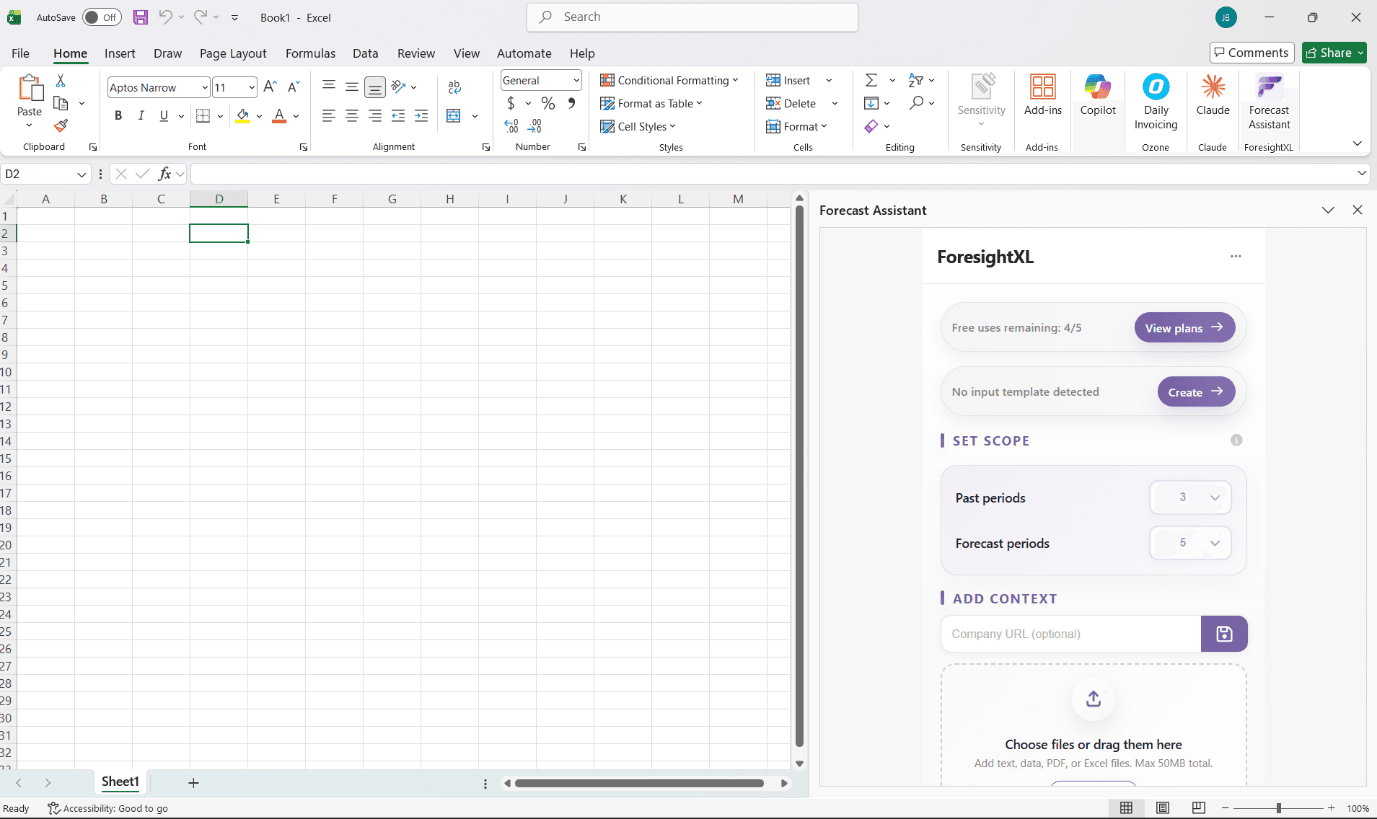
After installing the add-in from the Microsoft Store, open any workbook. You will see the ForesightXL button on the far-right side of the Home tab in the Excel ribbon. Click it to open the Forecast Assistant panel.
1.2 SIGN IN WITH MICROSOFT
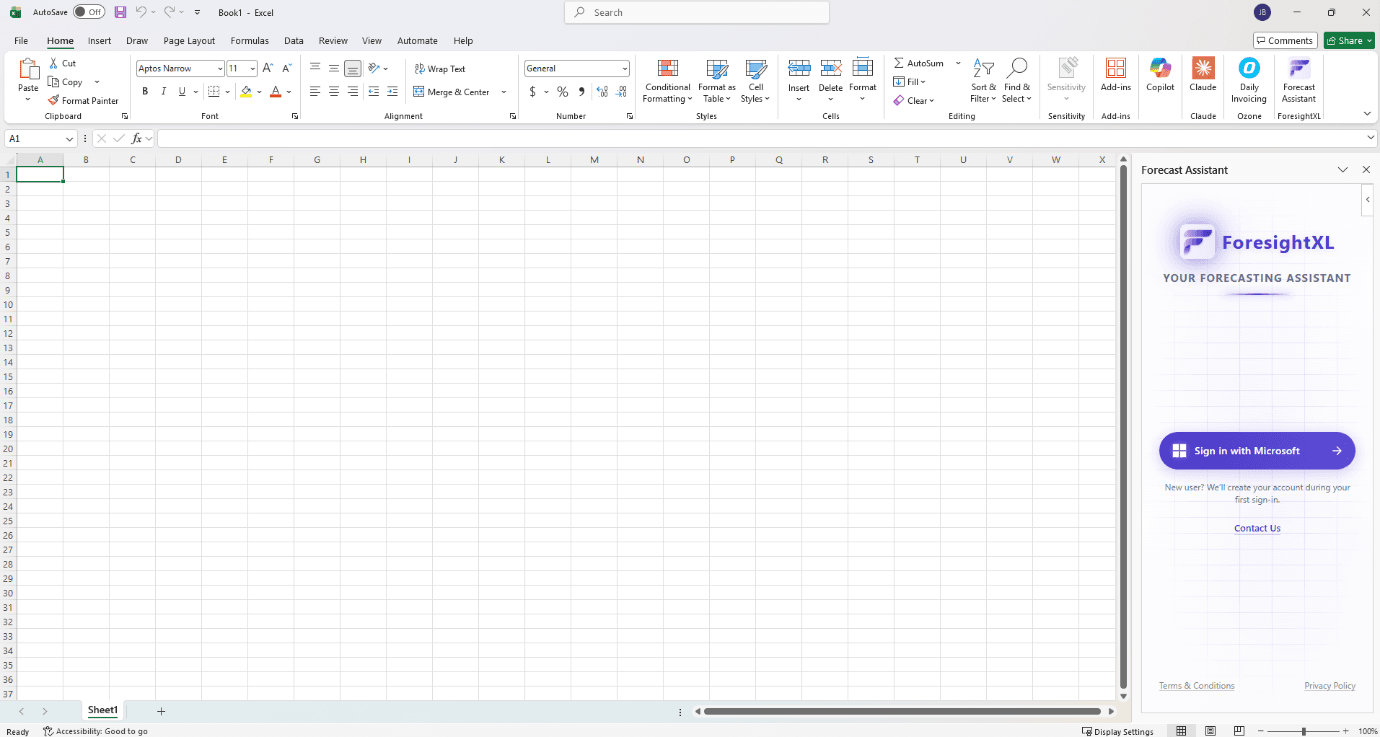
When you first open ForesightXL, the panel starts on the sign-in screen. Select Sign in with Microsoft and authenticate with your existing Microsoft 365 account. Your ForesightXL account is created automatically on first sign-in.
1.3 FORECAST ASSISTANT MAIN INTERFACE
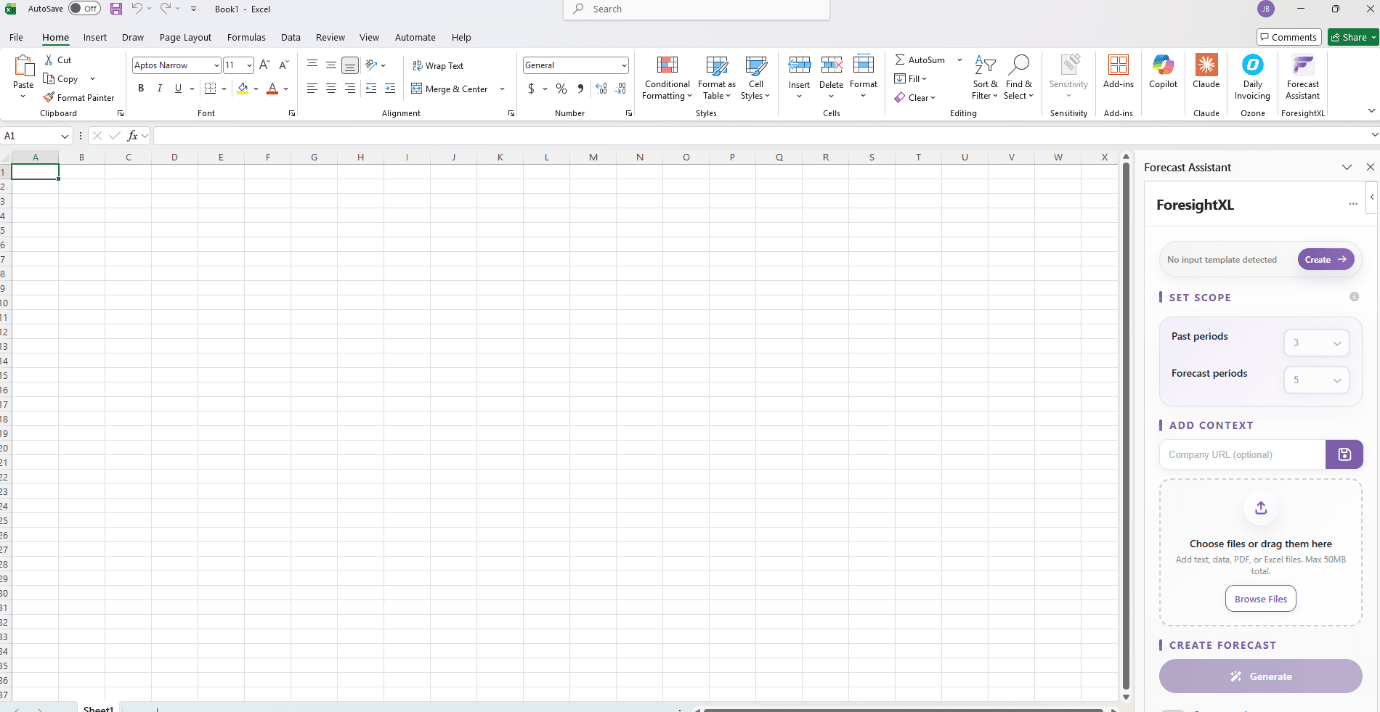
The Forecast Assistant panel is your control center. It is organized into Set Scope, Add Context, and Create Forecast with the Generate button.
Building your input
ForesightXL works from a structured Excel input sheet. This section walks you through generating the template, entering your data, setting the forecast scope, and adding business context to improve forecast accuracy.
- Generate the input template with one click
- Rename rows and columns to match your data
- Set past and forecast period counts
- Select a baseline method for the forecast
- Add your company URL and supporting files
- Write free-text business context
2.1 GENERATE THE FSXL_INPUT TEMPLATE
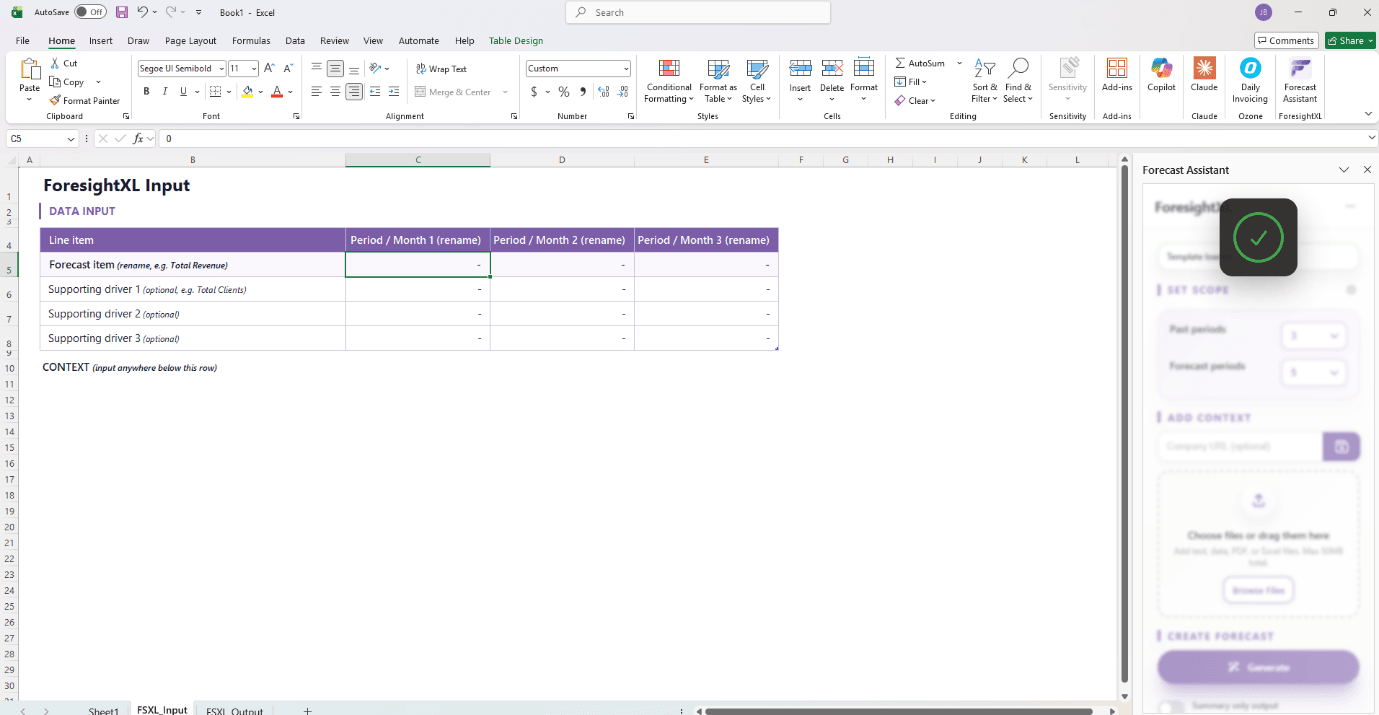
If no input sheet exists, the panel will show "No input template detected" with a Create button. Click Create to generate a structured FSXL_Input sheet with rows for your forecast item, supporting drivers, and a context section.
2.2 FILL IN FORECAST ITEM AND DRIVERS
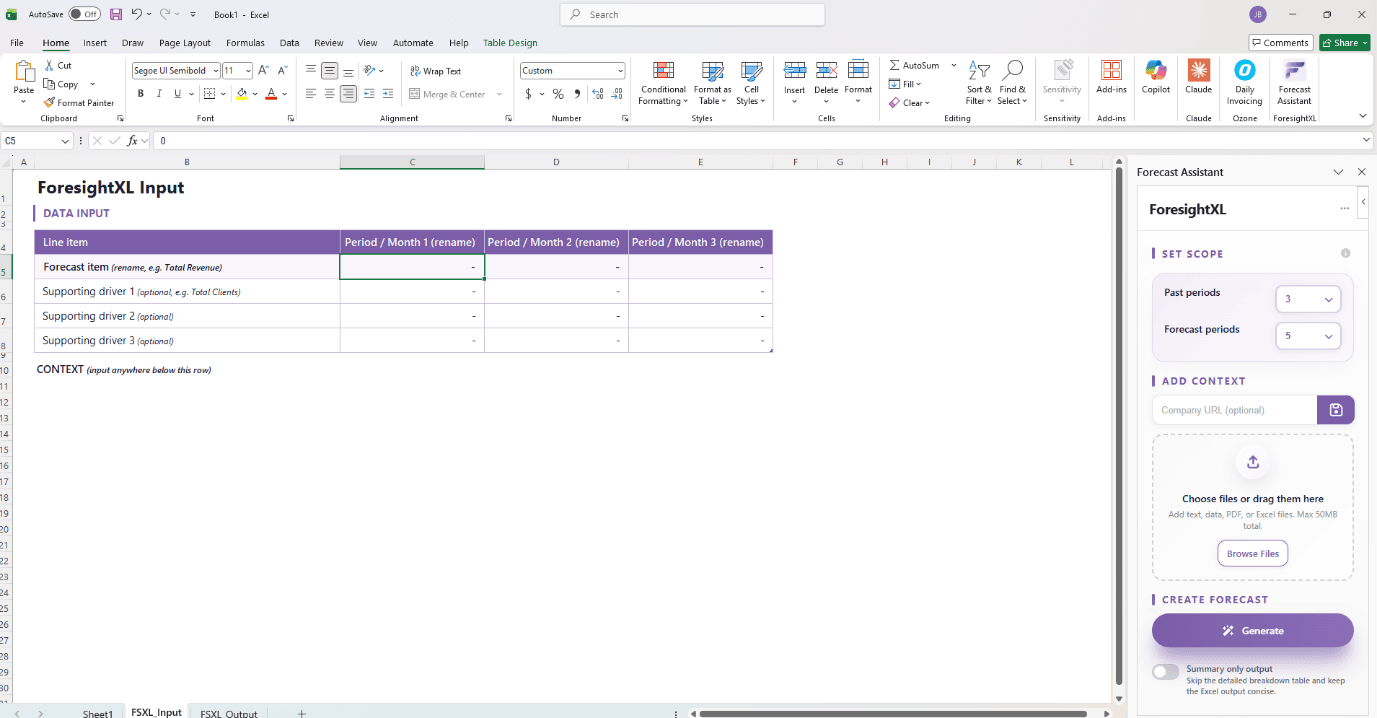
The FSXL_Input sheet contains the following rows - all of which can be renamed to match your business:
- Forecast item - The primary metric you want to forecast (e.g. Monthly Recurring Revenue).
- Supporting drivers 1-3 (optional) - Related metrics that help the AI model understand trends (e.g. Total Customers, Churn Rate).
- Period columns - Rename each column header to the relevant time period (e.g. Jan 2026, Feb 2026).
- Enter your actual historical values in each cell.
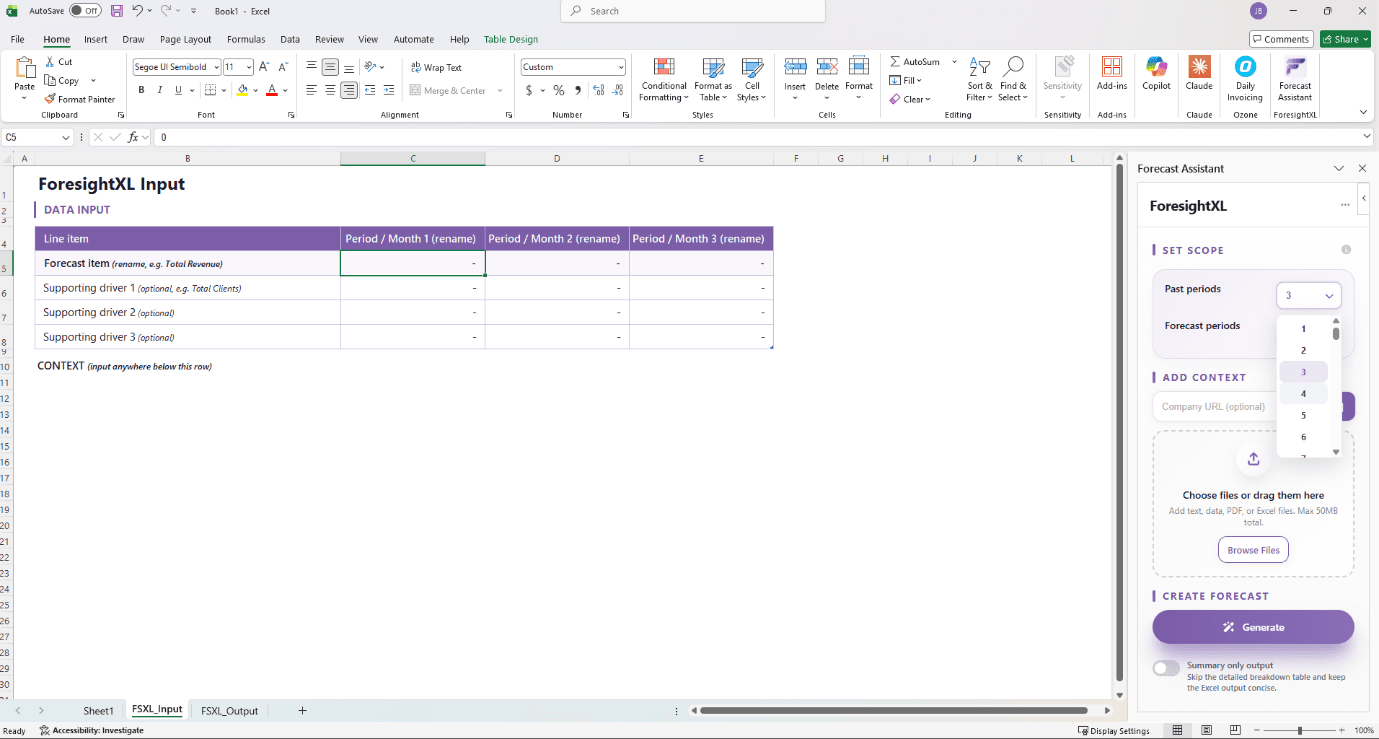
2.3 SET YOUR FORECAST SCOPE
More past periods gives the model more data to detect trends. More forecast periods extends your outlook further - but forecasts naturally become less precise over longer horizons.
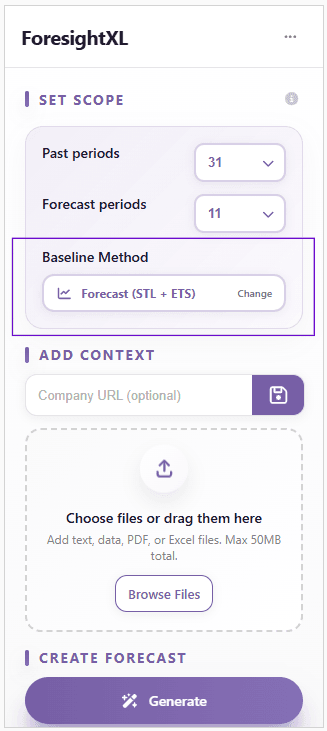
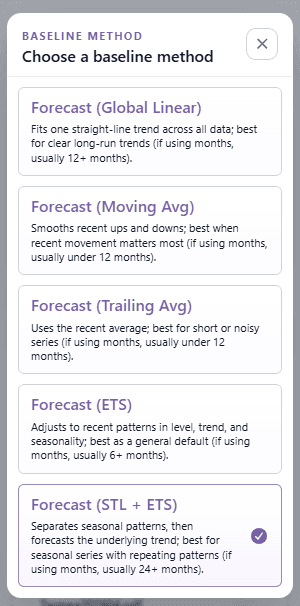
2.4 BASELINE METHOD
Choose the baseline method that best matches the structure of your historical data. ForesightXL uses this as the mathematical starting point before applying context-driven adjustments. Learn more in the Choosing the Right Baseline Method article.
2.5 ADD CONTEXT -COMPANY URL
In the Add Context section, you can optionally enter your Company URL. ForesightXL will use your website to gather additional background about your business - industry, product, market positioning - which helps produce more relevant and accurate forecasts without requiring you to type it all manually.
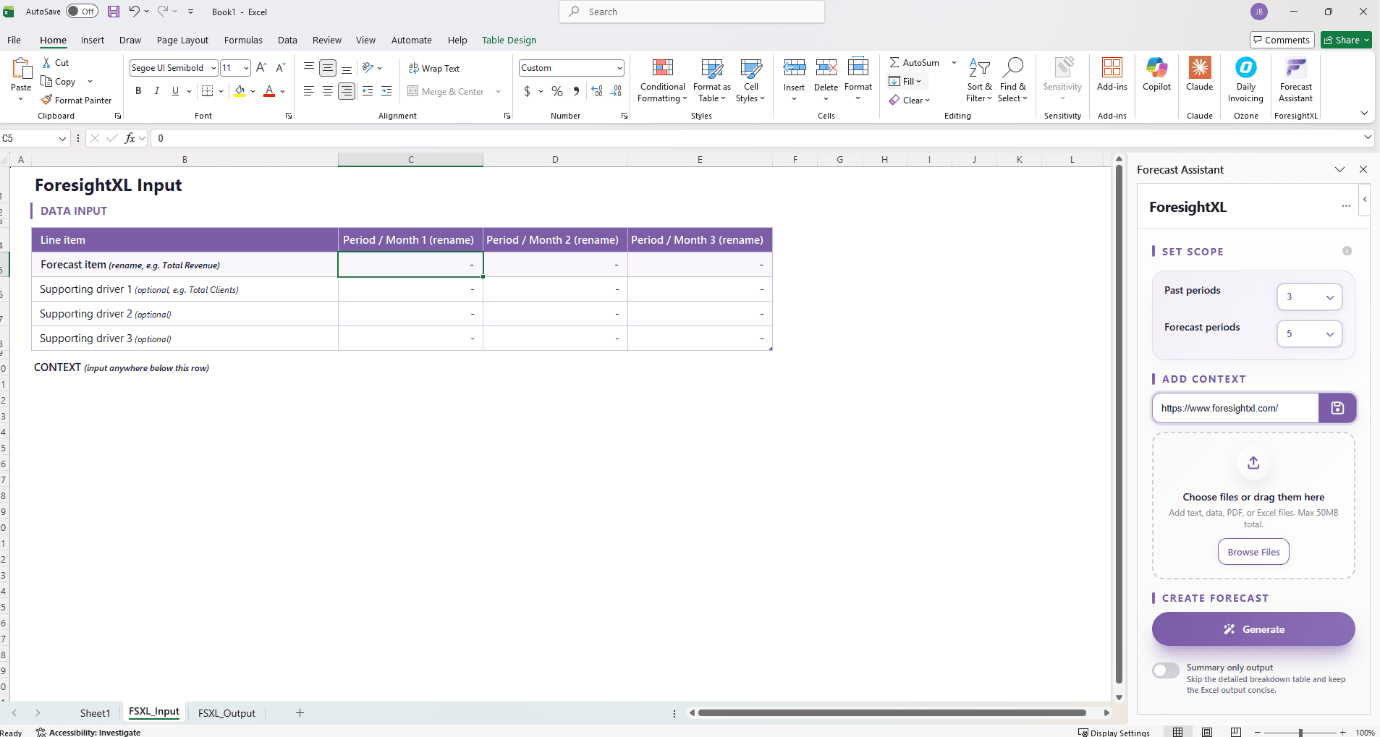
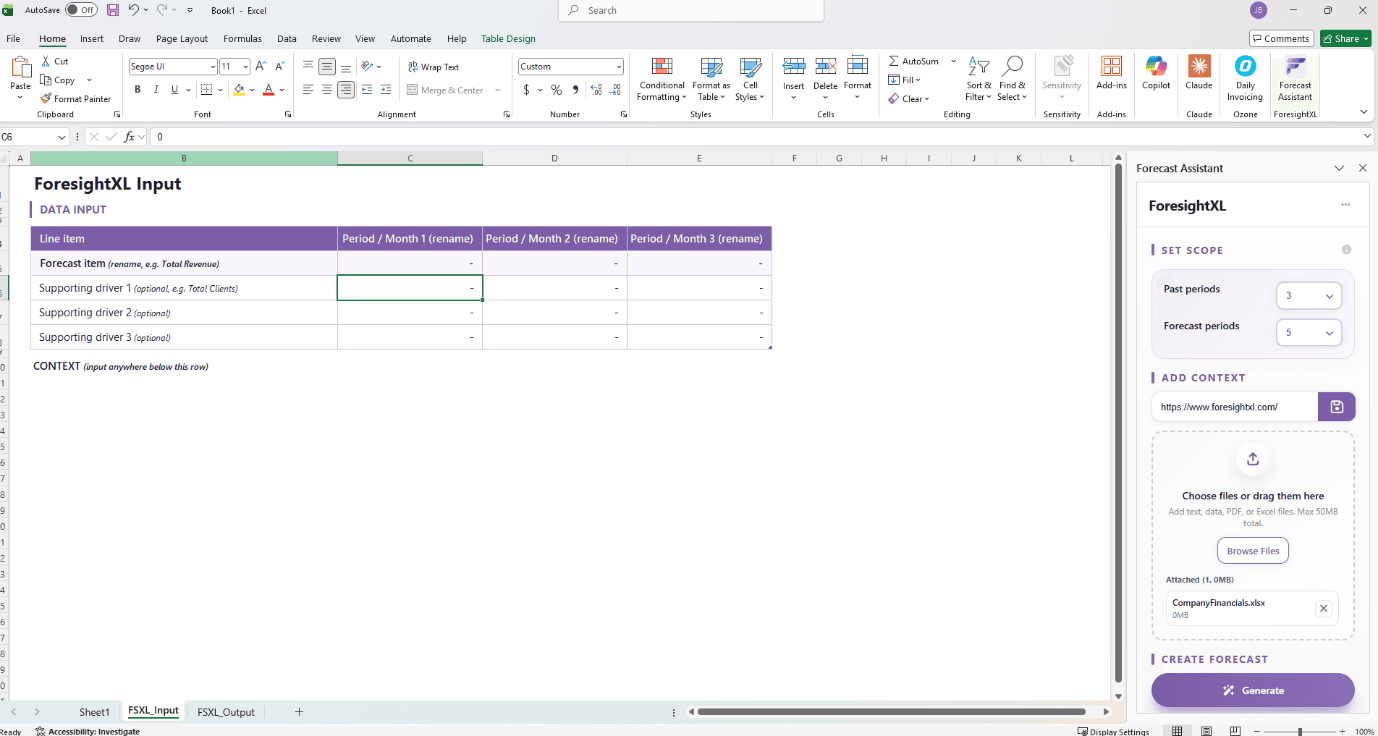
2.6 UPLOAD SUPPORTING DOCUMENTS
Use the file upload area to attach any relevant documents that provide additional context for your forecast. Supported formats include text files, PDFs, and Excel spreadsheets up to a maximum of 50MB total. Useful uploads include annual reports, financial statements, board packs, or market research.
2.7 COMPLETE THE CONTEXT SECTION IN THE SHEET
Beneath the row labeled "CONTEXT", enter relevant free-text business context. Include what the business knows now so the forecast aligns with reality. See What Good Forecasting Context Looks Like for examples.
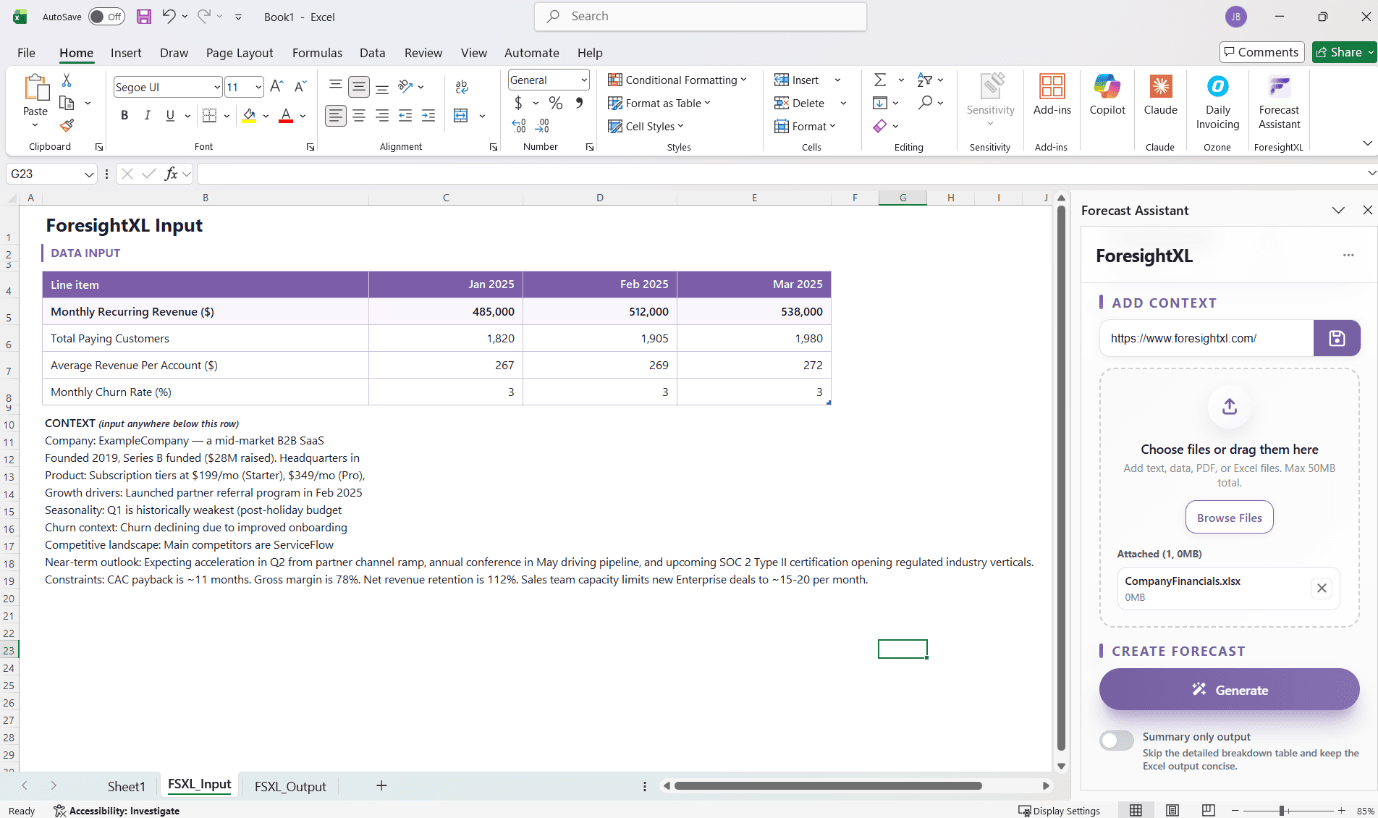
- Company overview and positioning
- Product and pricing changes
- Growth drivers or expansion plans
- Seasonality and recurring effects
- Competitive landscape updates
- Upcoming events or constraints
Generate your forecast
With your inputs complete, ForesightXL does the heavy lifting - running its forecasting model against your data and context to produce a detailed, explained output.
- Choose between full or summary output
- Click Generate and monitor progress
- Review your completed forecast
- Copy the Executive Summary
3.1 CHOOSE YOUR OUTPUT TYPE & CLICK GENERATE
When your input is ready, click the Generate button.
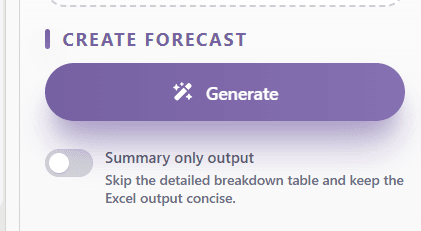
- Toggle OFF (default) - Full output including the Forecast Components breakdown table with mathematical baseline, recurring effects, business drivers, operating constraints, and strategic adjustments.
- Toggle ON - Concise output showing only the Forecast Result table and Executive Summary, keeping the sheet clean.
3.2 FORECAST IN PROGRESS
Once you click Generate, ForesightXL begins processing. The panel displays a live progress bar along with a preview of the Executive Summary as it is being written.
You can continue working in Excel while the forecast runs - there is no need to wait on the panel.
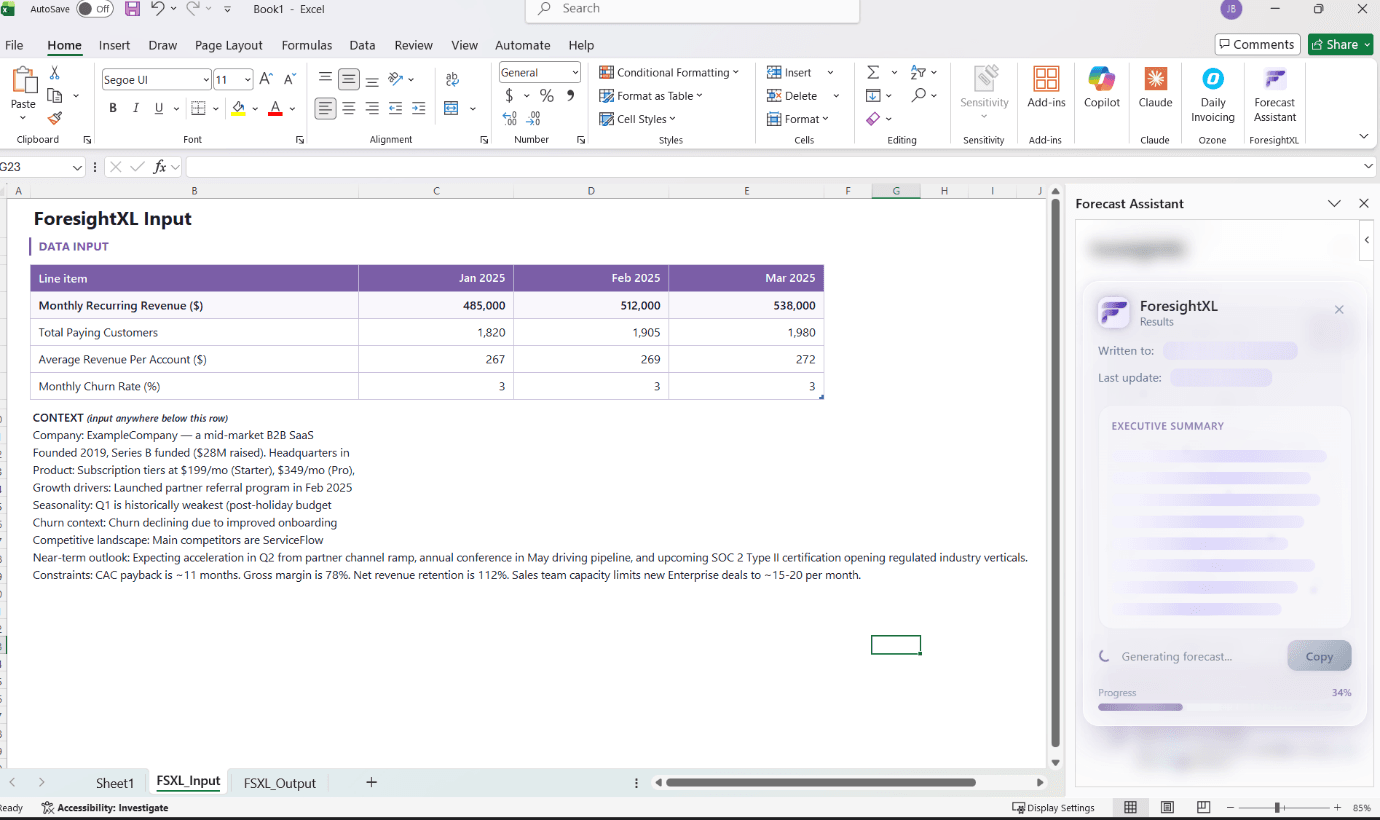
3.3 YOUR FORECAST IS READY
When complete, ForesightXL writes the full results to the FSXL_Output sheet. The output includes four key components:
- Executive Summary - A written narrative explaining the forecast rationale, key drivers, and risks.
- Actuals vs Forecast Chart - A line graph comparing historical data to projected values.
- Forecast Result Table - Period-by-period forecast values with plain-English explanations for each period's movement.
- Forecast Components Table - A detailed breakdown of every component contributing to each forecast figure.
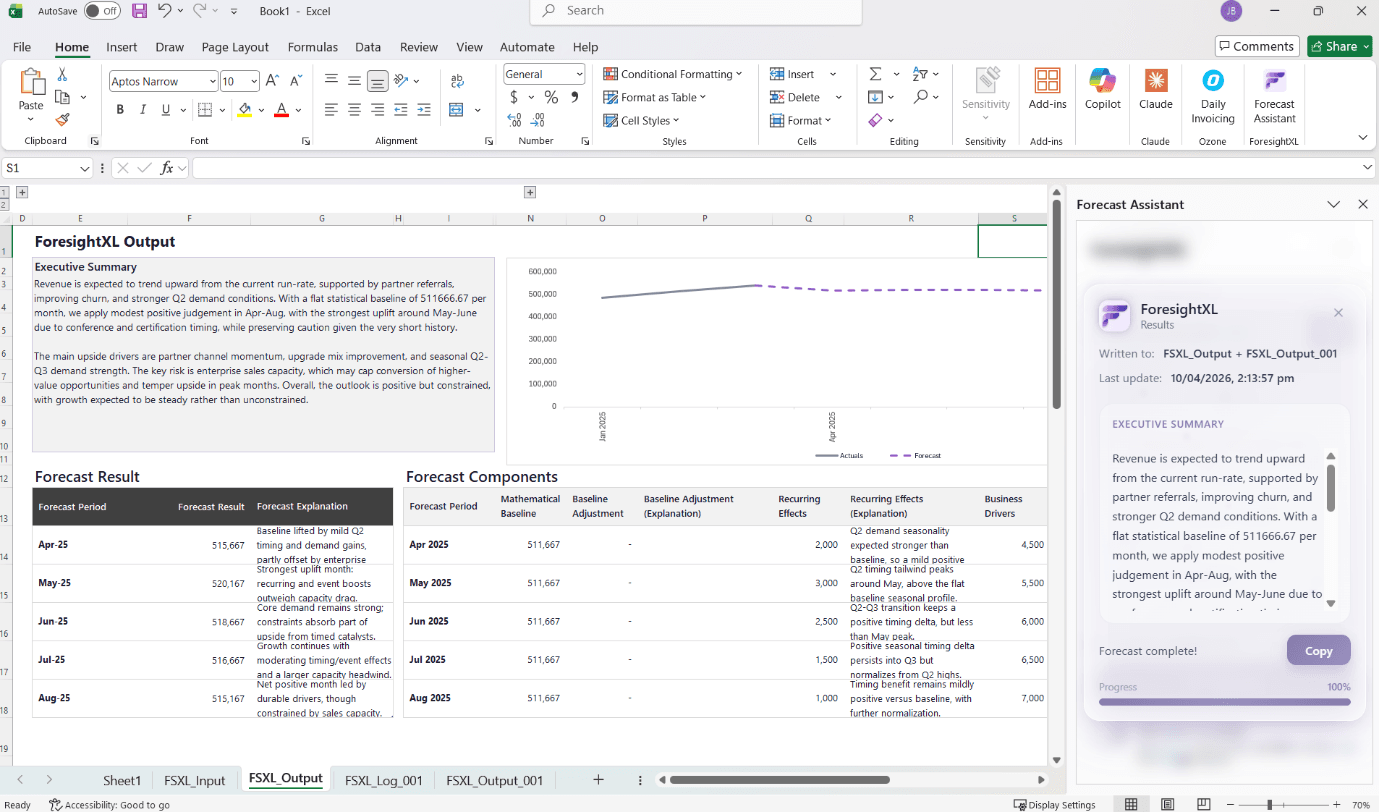
3.4 COPY THE EXECUTIVE SUMMARY
Once the forecast is complete, the full Executive Summary is displayed directly in the side panel alongside your output sheet. Click the Copy button to copy the narrative text to your clipboard - ready to paste into a board report, email, or presentation. The panel also shows the output sheet names and the timestamp of the last update.
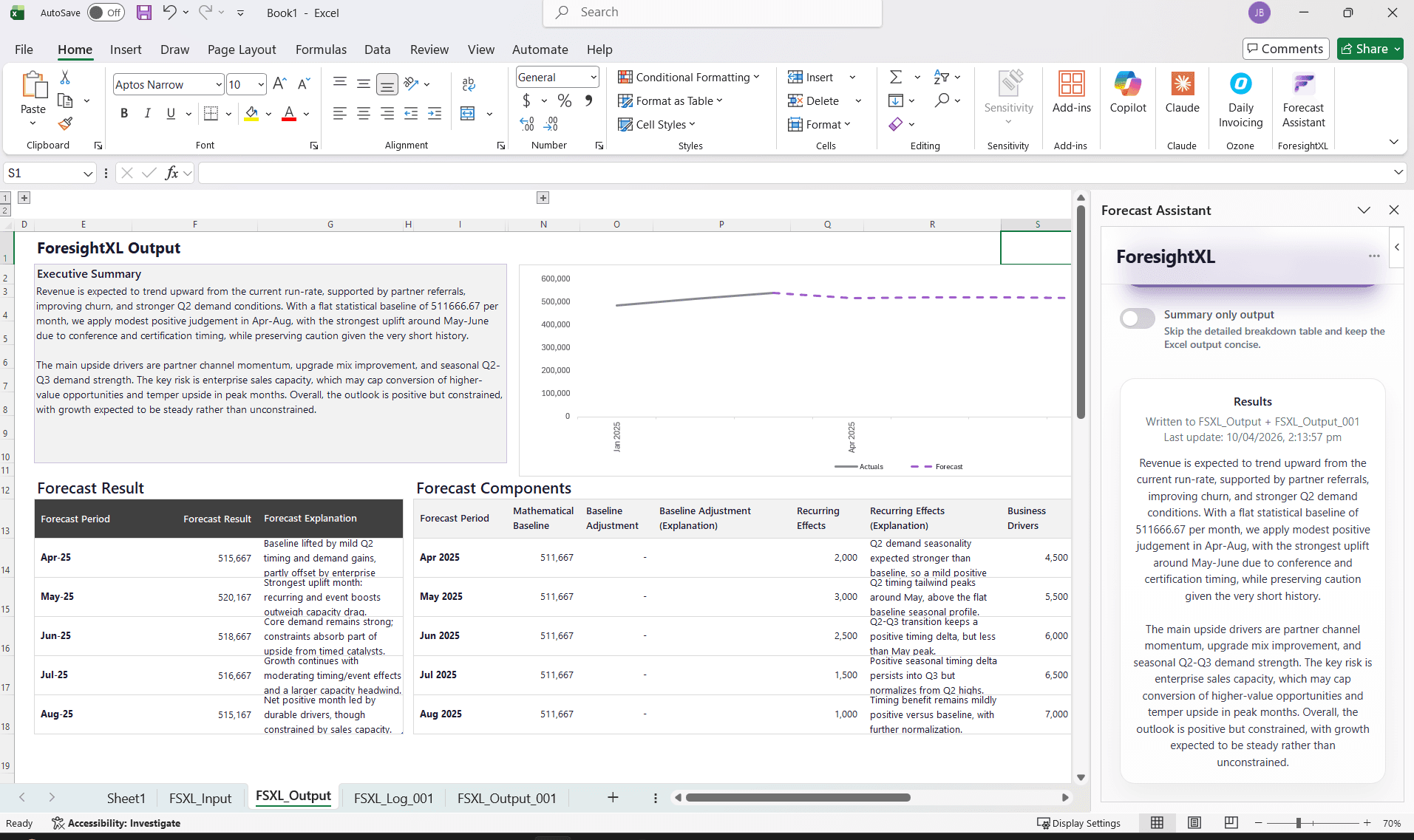
Understand your output
A guide to every section of the ForesightXL Output sheet and how version history is automatically maintained across multiple forecast runs.
- Executive Summary - the narrative
- Forecast Result - period values & explanations
- Forecast Components - the full breakdown
- Three Suggestions - improve your next forecast
- Automatic versioning with Log and Output tabs
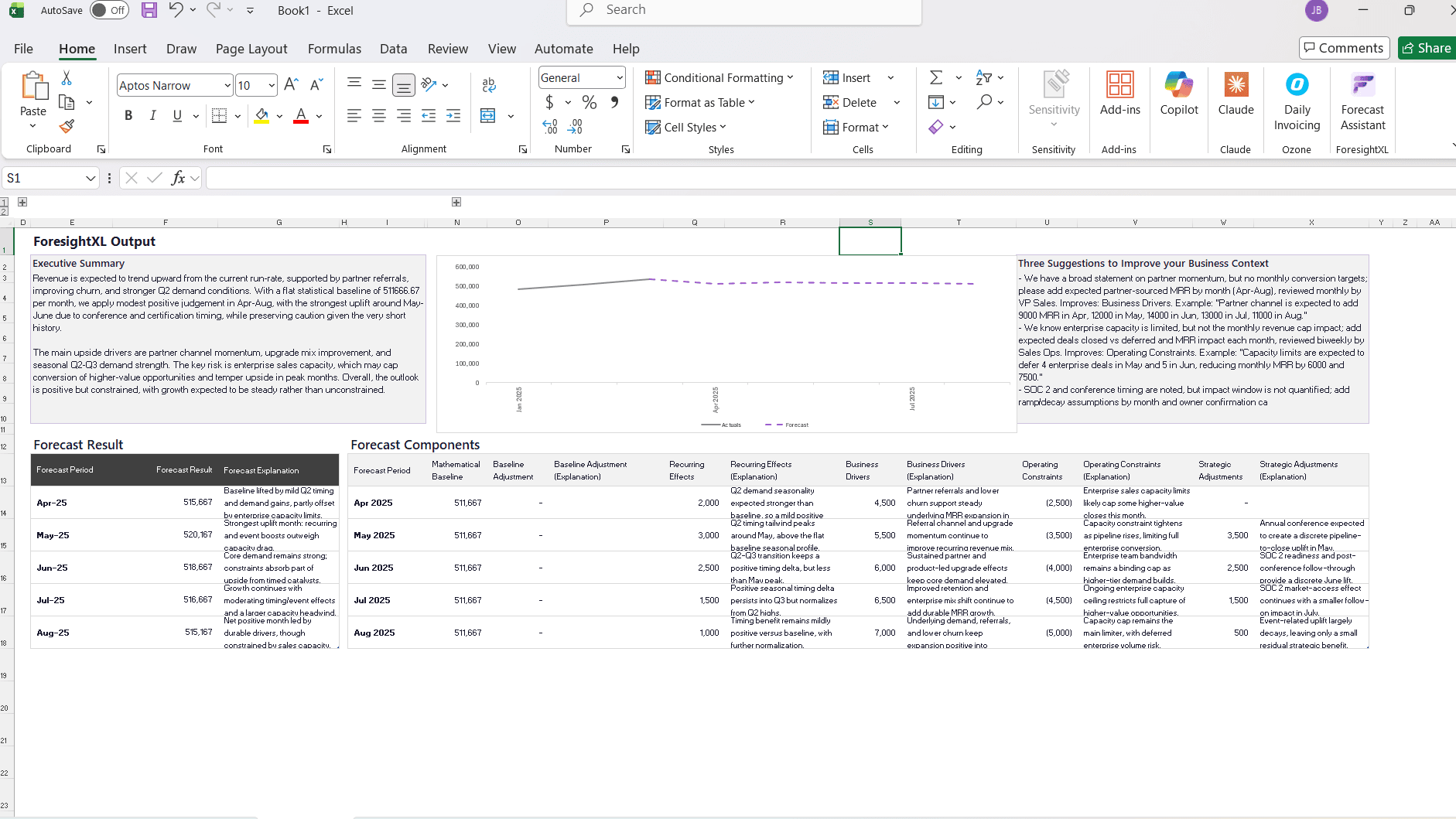
4.1 Forecast Result - Output Sheet - Full Breakdown
- Executive Summary - A written narrative explaining what is driving the forecast, key risks, and the overall outlook.
- Actuals vs Forecast Chart - Visual comparison of historical and projected values on a single line chart.
- Three Suggestions - AI-generated recommendations for improving your context inputs on the next run.
- Forecast Result - The final projected value for each period with a plain-English explanation of what drove that number.
- Forecast Components - A full audit trail: Mathematical Baseline - Recurring Effects - Business Drivers - Operating Constraints - Strategic Adjustments.
4.2 AUTOMATIC VERSION HISTORY
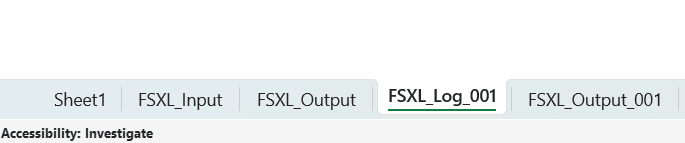
Every time you run a forecast, ForesightXL automatically creates two versioned sheets:
- FSXL_Log_001, _002, ... - A log record of each generation run, capturing the inputs and settings used.
- FSXL_Output_001, _002, ... - A snapshot of that run's full output, so previous forecasts are never overwritten.
This means you can always compare forecasts across different runs and see how your projections evolve as you refine your inputs and context.
Account & Billing
Manage your subscription, upgrade to Pro, assign seats to team members, and access documentation, support, and legal resources - all from within the add-in.
- Free trial - 5 forecasts included
- Accessing your account menu
- Viewing and managing your subscription
- Upgrading to Pro - billing period, seats & checkout
- Assigning seats to your team
- Documentation, support & legal links
- Terms of Service & Privacy Policy
5.1 FREE TRIAL - 5 FORECASTS INCLUDED
All new users receive 5 free forecast generations upon signing in with Microsoft - no credit card required. The remaining free uses are displayed at the top of the panel. Once your free uses are exhausted, you will be prompted to upgrade to a Pro subscription to continue generating forecasts.
5.2 ACCESSING YOUR ACCOUNT MENU
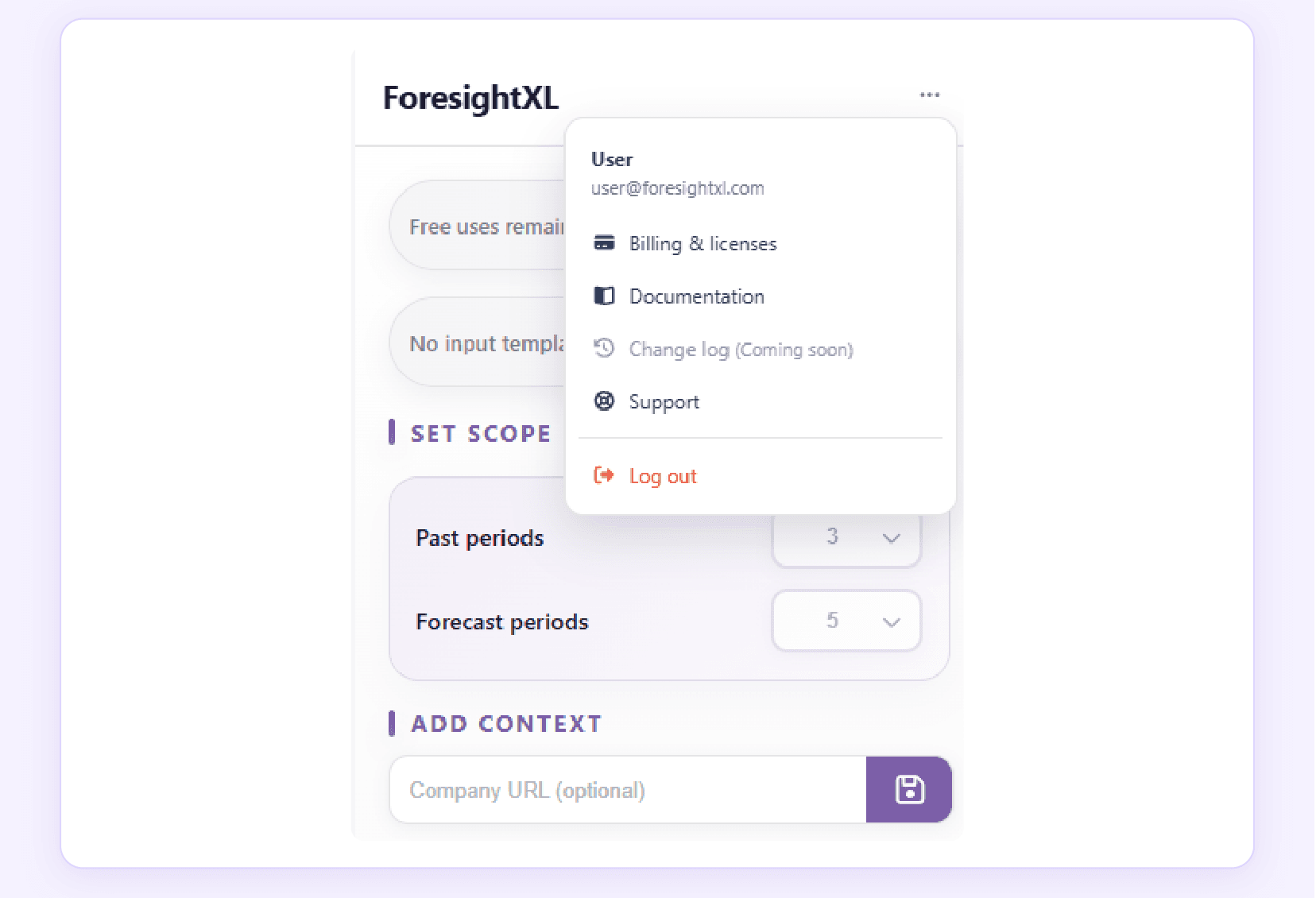
Click the ··· (three-dot menu) in the top-right corner of the ForesightXL panel header to access your account options. The menu displays your name and email address, along with the following links:
- Billing & licenses - Manage your subscription, seats, and payment details.
- Documentation - Opens the ForesightXL website with full product documentation.
- Change log - View the latest product updates and release notes.
- Support - Get help from the ForesightXL support team.
- Log out - Sign out of your account.
5.3 BILLING AND LICENSES
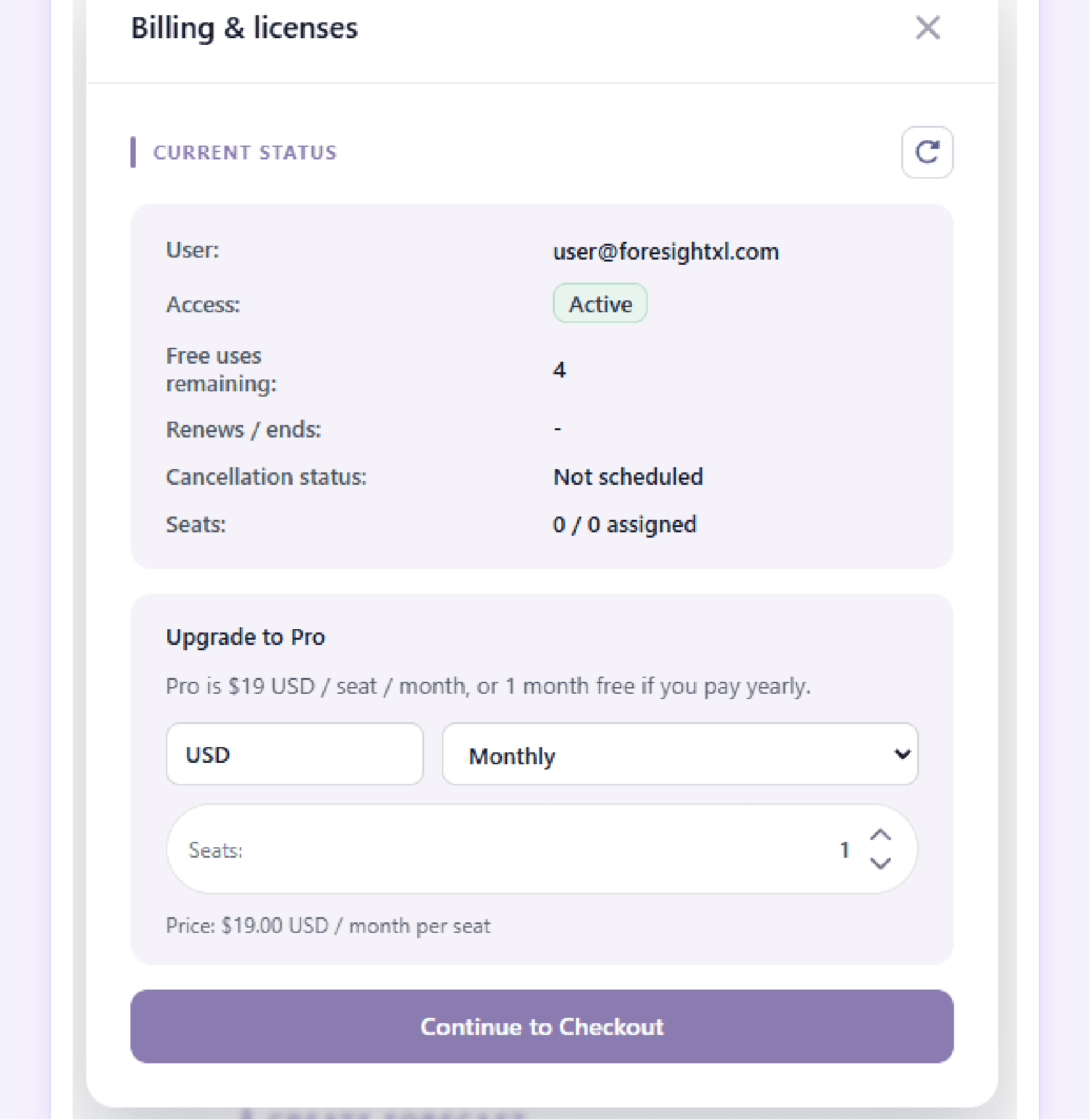
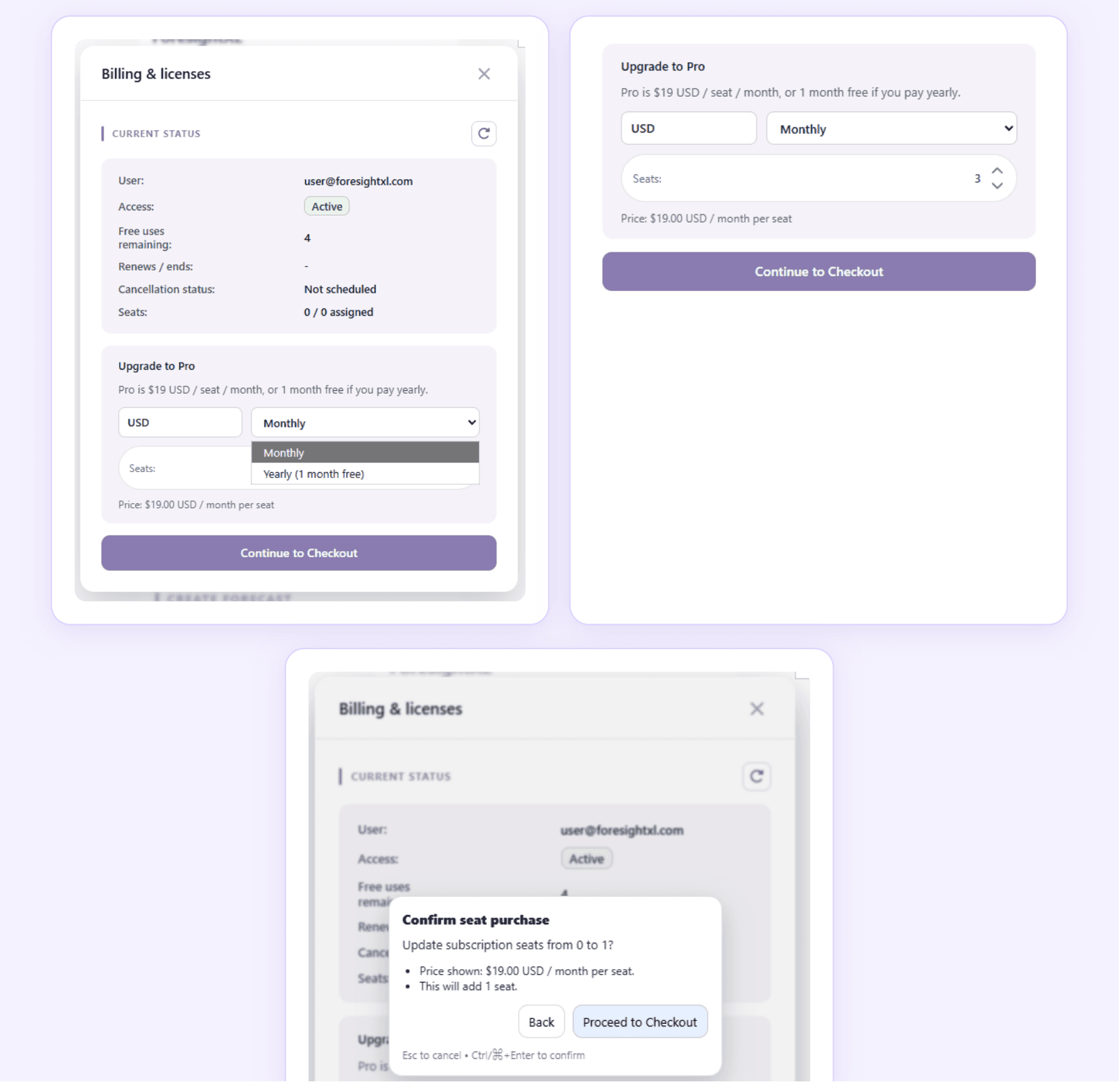
The Billing & licenses screen shows your current subscription status at a glance, including your access level, free uses remaining, renewal date, cancellation status, and seat allocation. To upgrade, use the Upgrade to Pro section below the status card.
5.4 UPGRADE TO PAID
The paid plan is priced at $19 USD per seat per month, with a one-month discount if you pay yearly. Choose monthly or yearly billing, set seats, and complete checkout through Stripe.
- Select your preferred billing period - Monthly or Yearly (1 month free).
- Set the number of seats required using the seat counter.
- Review the total price, then click Continue to Checkout.
- Confirm the seat purchase in the confirmation dialog.
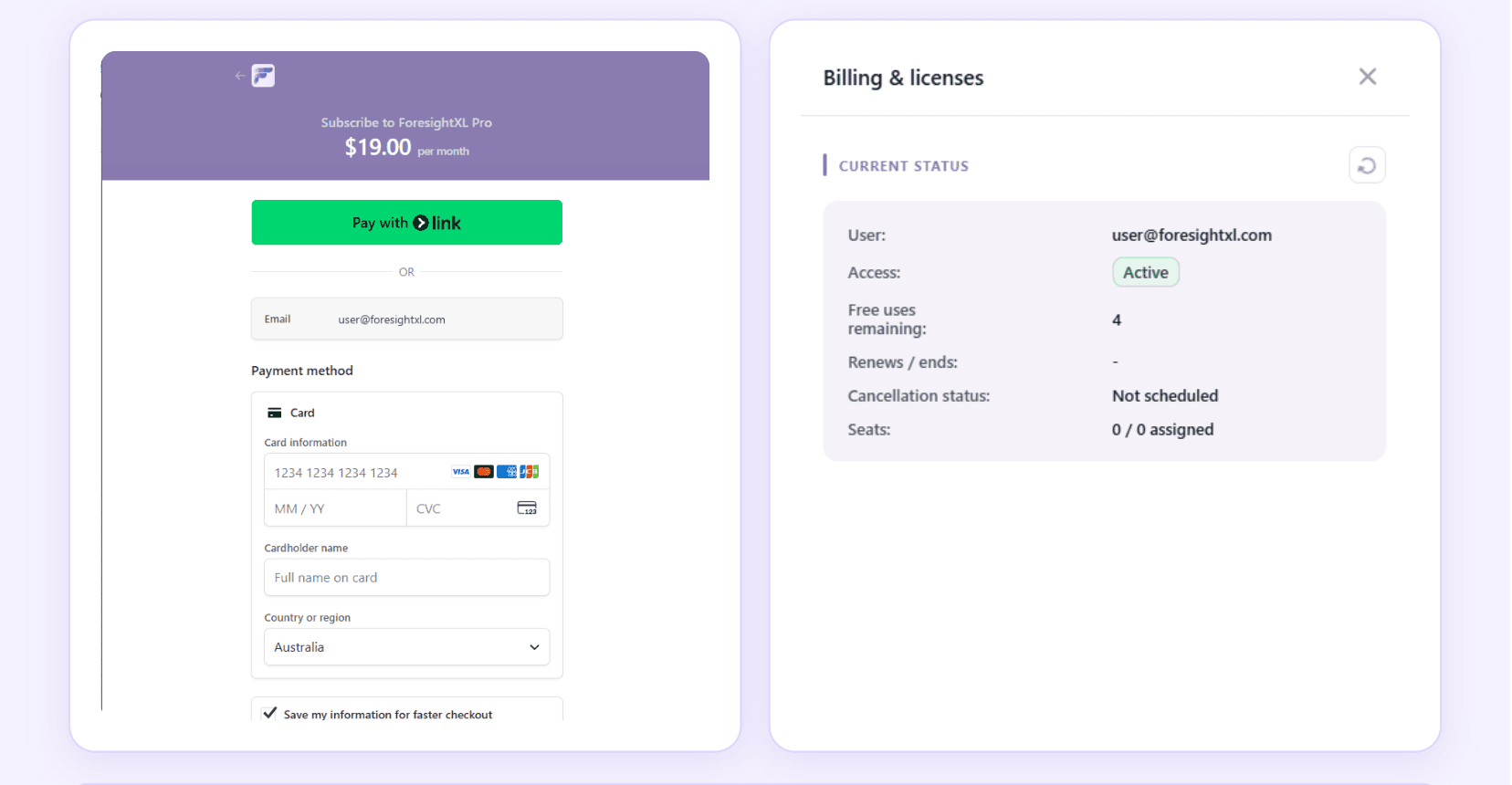
- Complete payment via the Stripe secure checkout (card or Pay with Link).
5.5 SECURE CHECKOUT & ACTIVE SUBSCRIPTION
After confirming your seat purchase, you are taken to a Stripe-powered checkout page - fully embedded within the add-in panel. Enter your card details and complete the payment. Once successful, your Billing & licenses screen will update to show your active subscription, token usage, renewal date, and assigned seats.
5.6 ASSIGNING SEATS TO TEAM MEMBERS
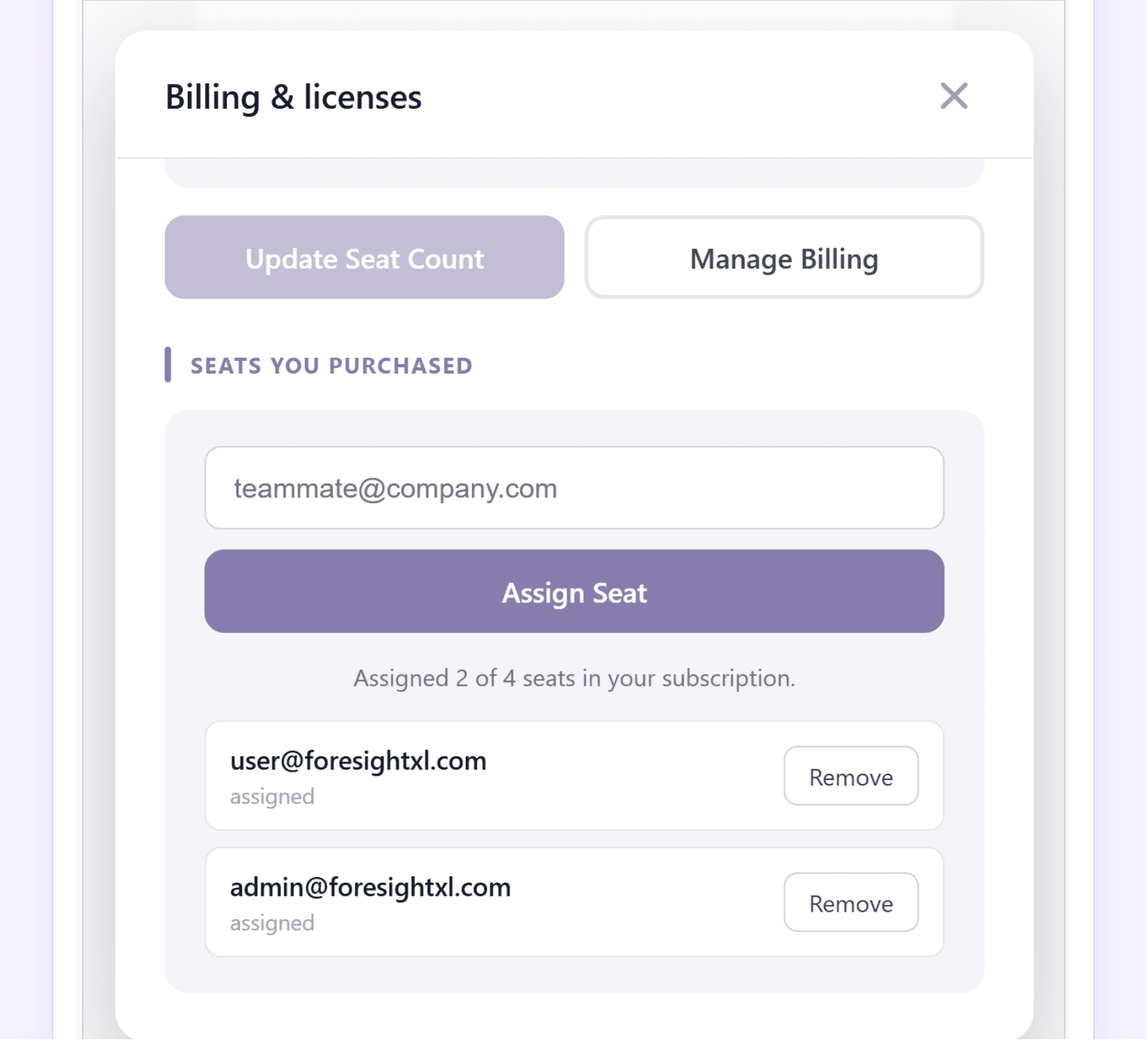
ForesightXL supports multi-seat subscriptions. From the Billing & licenses screen:
- Add seats - Increase the seat count and click Update Seat Count.
- Assign a seat - Enter a team member's email and click Assign Seat. They can access Pro immediately.
- Remove a seat - Click Remove next to any assigned user to free that seat.
- Manage Billing - Opens the Stripe billing portal for payment methods and invoices.
5.7 DOCUMENTATION, SUPPORT & LEGAL
All resources are accessible directly from the ··· account menu within the add-in:
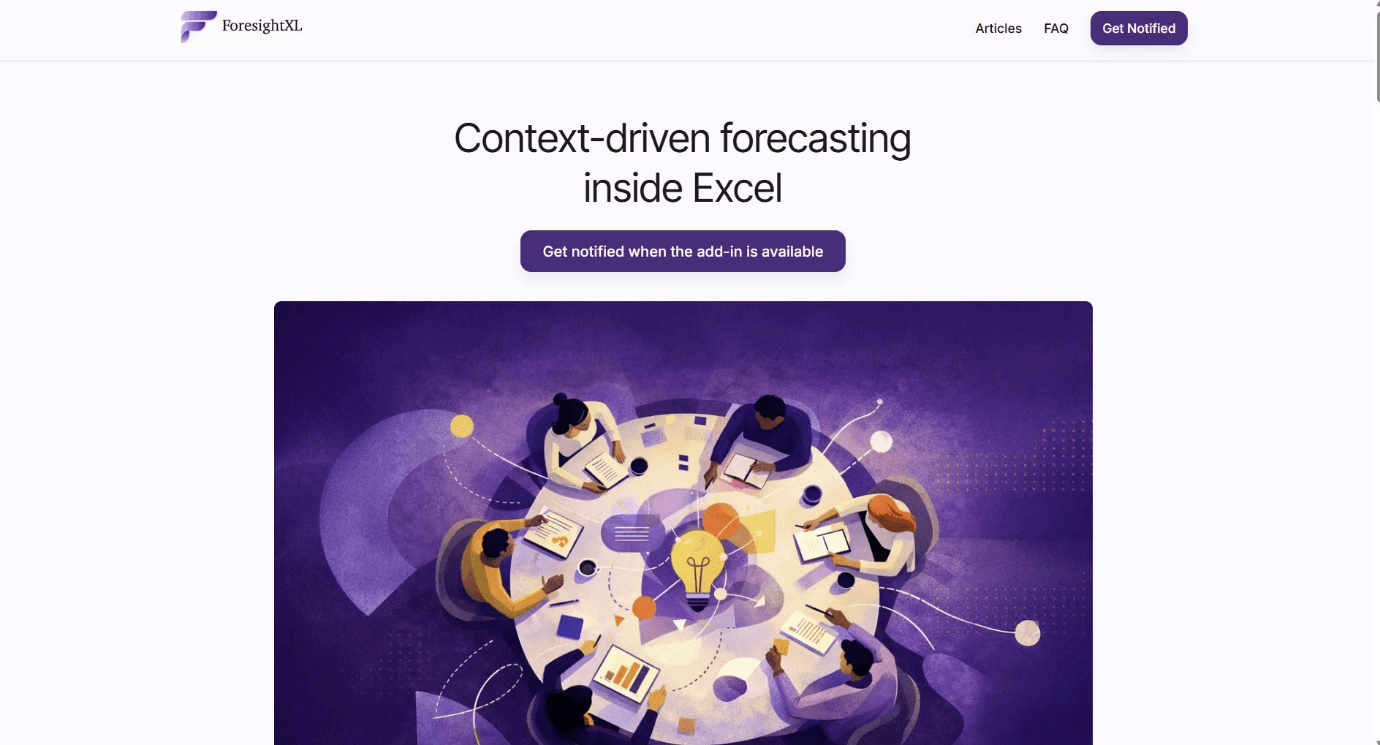
- Documentation - Opens foresightxl.com where you can find product articles, FAQs, and a forecasting framework guide.
- Change log - Links to the latest release notes and feature updates on the ForesightXL website.
- Support - Opens the support section of the website. You can also reach us at foresightxl.com/contact-us.
- Terms & Conditions and Privacy Policy - Available via links at the bottom of the login screen and on the ForesightXL website.
5.8 TERMS OF SERVICE & PRIVACY POLICY
ForesightXL's legal documents are accessible via links at the bottom of the login screen and on the website at foresightxl.com.
- Terms & Conditions - Governs your use of the ForesightXL add-in, APIs, and associated services. Key sections cover the free trial, paid subscriptions, data processing, and licence & intellectual property.
- Privacy Policy - Details what information is collected during sign-in and usage (Microsoft identity, usage metadata), how it is stored, and your rights under applicable privacy law including the Australian Privacy Principles (APPs).
Return to top
Jump back to the beginning of the guide.